

- by John White
How Do You Adjust Print Heads in a UV Flatbed Printer?
- by John White
Print bigger, print faster — wide-format UV flatbed printers for signs, decor and industrial work.

Adjust a UV flatbed printer head through the exact model’s calibration procedure—not by physically moving the head assembly. First verify nozzle condition, media stability and head height; then print the prescribed alignment charts and enter only the values requested by the controller. Mechanical head position, voltage and waveform settings should be changed only by trained service personnel.
(Last modified date: September 12, 2026)
| Symptom | Likely checks |
|---|---|
| Repeated missing lines | Nozzle check and approved cleaning |
| Double vertical edges in bidirectional mode | Bidirectional calibration at the actual head gap |
| White and color layers offset | Layer registration, origin and artwork/RIP order |
| Error changes across the bed | Bed plane, media height, fixture stability and carriage geometry |
| Whole image shifted | Origin, fixture datum and layout—not necessarily the head |
Epson’s troubleshooting sequence likewise places nozzle checking, head alignment and media adjustment as separate actions. The labels and order differ between models, so generic numeric values should never be copied.
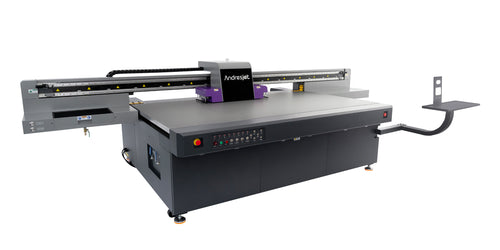
Stop and request service after a collision, if calibration values move to an extreme, if one bed area cannot match another, or if the controller requests mechanical or electrical adjustment. Do not loosen head mounts, alter head voltage, wipe nozzle plates with an unapproved material or enter another machine’s parameters.
A calibration chart can pass while a multilayer job still fails. Confirm fine text, thin vertical lines, both carriage directions and color-to-white registration on the actual substrate. Record the head gap, mode, fixture and result as the approved baseline.
Send the printer model and serial number, head configuration, firmware/RIP version, nozzle-check photo, alignment chart, defect close-up, substrate and head gap, whether the issue is one-way or two-way, and any collision or maintenance immediately before the fault. Request configuration-specific AndresJet support; a clear diagnostic package reduces trial-and-error downtime.
Not unless the exact service procedure authorizes you and you are trained to perform it. Operator alignment normally uses printed charts and controller values.
Yes. Run and interpret a nozzle check before changing alignment values.
It can. Calibrate at the documented gap and verify on the production substrate.


